Ignore Files
In some cases, you may need to exclude large or specific files from synchronization, such as video files that take up significant storage space or temporary files.
Sync Vault filters out the following kinds of files: system built-in ignored files, files matched by regular expressions, files exceeding the size limit, and hidden files that are not synced by default.
Where to Configure
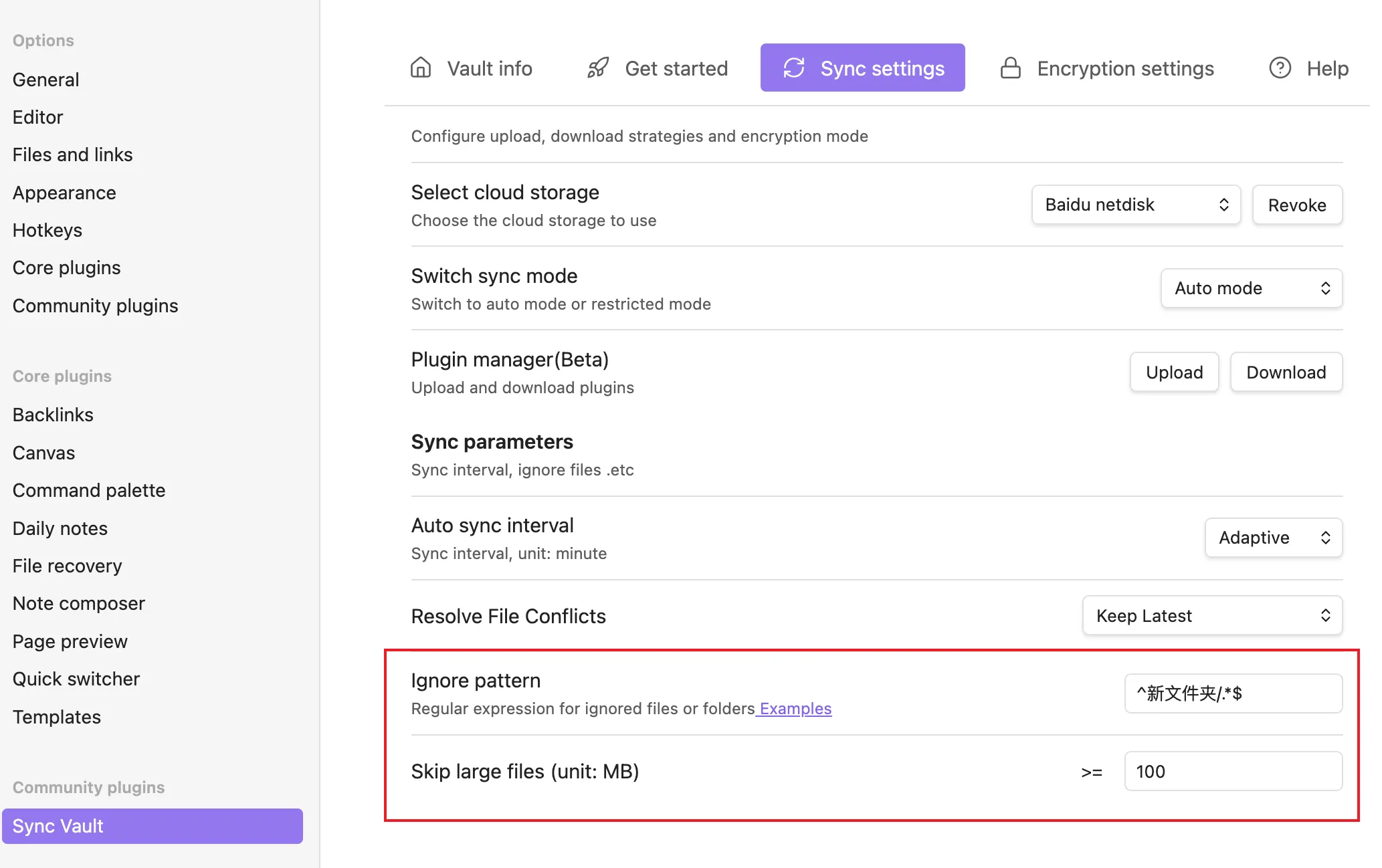
Section titled “Where to Configure”Open Settings → Sync and find the following options under Configure Sync Parameters in the “1” Cloud Cold Backup section:
- Ignored Files: exclude files or folders using a regular expression.
- Skip Large Files: skip files larger than the specified size (in MB).
- Sync Other Files: whether to sync hidden files starting with
.(including themes and plugins).
System Built-in Ignored Files
Section titled “System Built-in Ignored Files”The following files are always excluded from sync and require no configuration:
| Type | Files |
|---|---|
| OS junk files | .DS_Store (macOS), Thumbs.db (Windows), Desktop.ini (Windows) |
| Version control | .git |
| Obsidian workspace state | workspace, workspace.json, workspace-mobile.json |
| Trash | .trash |
| Others | .ignore, .tmp, .sync-vault-debug |
In addition, the plugin’s own files (obsidian-sync-vault, sync-vault-ce), VFS stub files (.osvc), and the sync state folder (.data) are also ignored automatically.
Ignore Files by Regular Expression
Section titled “Ignore Files by Regular Expression”Enter a regular expression in the Ignored Files field; matching files (relative paths inside the vault, using / as separator) will be excluded. For example:
| Filter | Regular Expression |
|---|---|
A/file.md anywhere | A/file\.md$ |
Both A/file.md and B/file.md | A/file\.md$|B/file\.md$ |
All files under A or B folders | /(A|B)/ |
All .bak backup files | \.bak$ |
All .zip archives | \.zip$ |
TIPThe regex is matched against the relative path in the vault (with
/as separator). If you are unsure how to write a regex, see the ignore file examples, or validate your pattern first with a tool such as RegExr.
In the Sync Browser, you can use the Ignored filter to view ignored files.
Skip Large Files
Section titled “Skip Large Files”Set a size limit (in MB, default 100) in Skip Large Files; files larger than the limit are skipped and not uploaded to the cloud. This limit only affects the sync of newly added or modified files and does not delete existing files from the cloud.
Hidden Files
Section titled “Hidden Files”By default, hidden files starting with . are not synced. To sync hidden files such as themes and plugins, enable the Sync Other Files toggle under Configure Sync Parameters.